
Setup guide
Set up PoE Upgrade Checker in about five minutes.
Everything from the download to your first F2: importing your build from Path of Building or poe.ninja, prices, the upgrade check, the price check, hotkeys and settings, for Path of Exile 2 and Path of Exile 1.
In this guide
- What you need
- Install
- Set up the game
- First launch
- Import your build
- poe.ninja: prices and builds
- Save your gear
- Path of Exile 2
- Path of Exile 1
- Use the upgrade checker
- Find upgrades on trade
- Use the price checker
- Hotkeys
- Settings
- Troubleshooting
What you need
- Windows 10 or 11. Desktop Linux with Steam Proton, Lutris or Heroic works too (experimental): see Path of Exile 2 on Linux.
- Path of Exile 2 or Path of Exile 1. One install covers both: the app knows which game you're in on every key press.
- Your build, as a Path of Building export code, a pobb.in link or a character on poe.ninja. You don't need Path of Building installed: its calculation engine is inside the app. In PoE2 the app can also give a rough gear score with no build at all.
1. Install
- Download PoE-Upgrade-Checker-Setup-x.y.z.exe from the newest release and run it. It installs for your Windows user only, so it needs no admin rights, and it updates itself.
- Windows SmartScreen may say it doesn't recognise the app, because the installer isn't code-signed. Click More info, then Run anyway. The app is open source on GitHub, and every release is built there by GitHub Actions.
- Prefer nothing installed? The Portable .exe on the same page runs from anywhere, but doesn't update itself.
The app lives in the system tray (by the clock). Closing the main window keeps it running there; right-click the tray icon for its menu: Settings & gear… opens the main window, and it also has the results window, the loot filter editor, the search string builder, Open log, Pause watching and Quit.
Had PoE2 Upgrade Checker? It's the same app, renamed when it started supporting PoE1. It updates itself to the new name and keeps your characters, builds and settings.
2. Set up the game
- In the game, open Options → Graphics and set Windowed Fullscreen. In exclusive fullscreen the popup can't show over the game: it's the most common reason the app seems to do nothing.
- Start the game normally, not as administrator. Windows doesn't let a normal app send Ctrl+C to a game running as administrator.
- Optional: turn on advanced item descriptions in the app (Settings → Use advanced copy). The app then copies with Ctrl+Alt+C, and the popup shows each mod's tier and roll, and open prefixes and suffixes for crafting.
3. First launch: the setup guide
The first time it starts, a short guide opens. You can run it again any time from My gear → Setup guide.
- Welcome: the Windowed Fullscreen reminder, and a tick box for anonymous usage counts (numbers only, no account, items or builds; you can turn it off here or in Settings).
- Your game and league: pick Path of Exile 2 or Path of Exile 1, and the league for prices and trade searches. Leave it on The current league and the app moves to the next league by itself; pick Standard or a Hardcore league if that's where you play.
- Your build: paste your Path of Building code or pobb.in link (more in the next section). No build in PoE2? Pick the closest gear score profile instead.
- Your hotkey: it says whether F2 is working, lets you pick where the popup appears, and Show a test popup checks it can draw.
- Your gear: how to save what you're wearing.
- You're set: it waits for your first item. Hover one in game and press F2: it says It works when the app got it.
4. Import your build
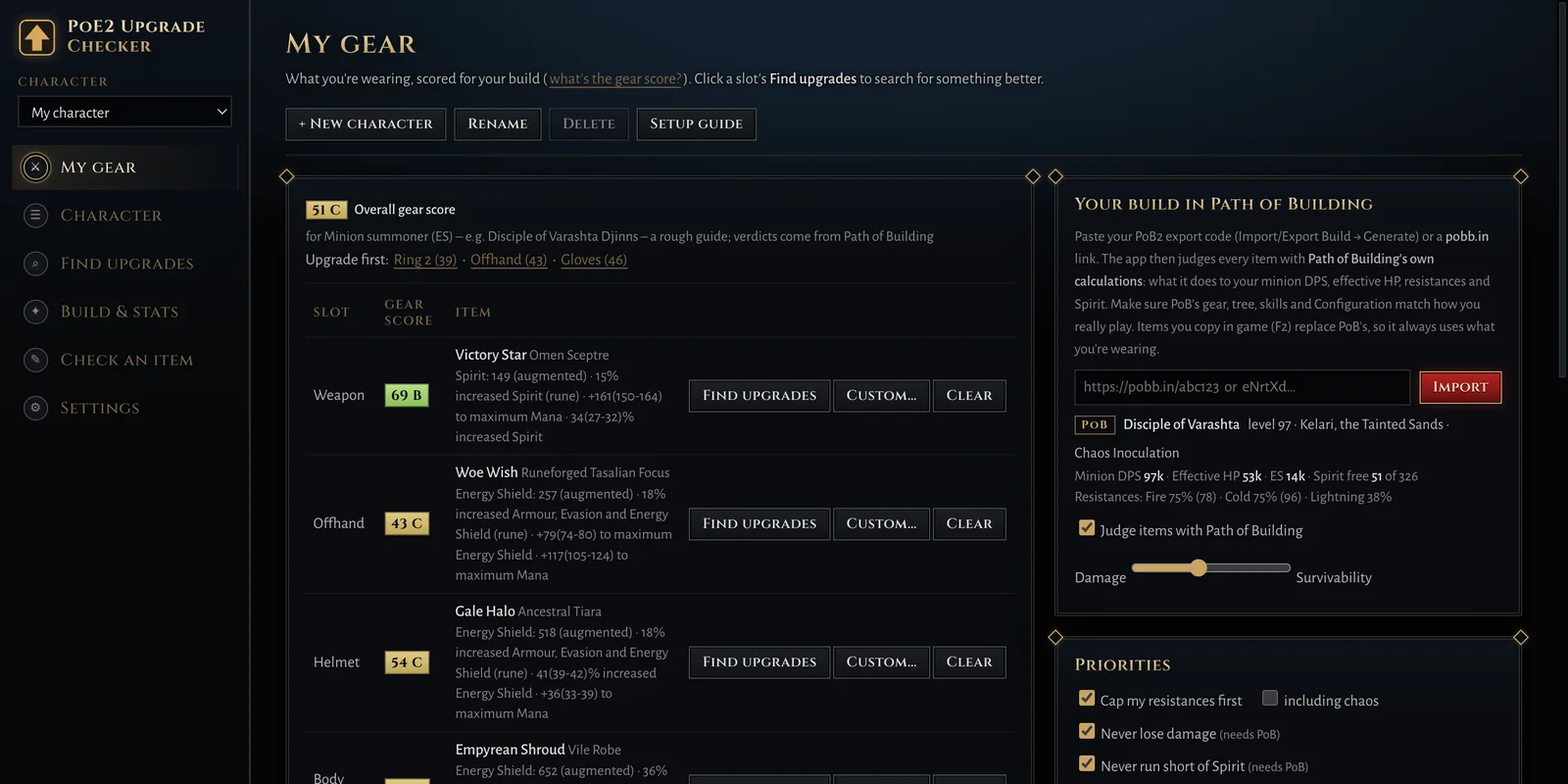
This is the step that makes the verdicts exact. With your build loaded, the app runs Path of Building's own calculations on every item: what it does to your damage (or your minions'), effective HP, resistances, Spirit or mana, for any class and any skill.
From Path of Building
- Open your build in Path of Building 2 (PoE2) or Path of Building Community (PoE1). New to it? See Path of Building for PoE2.
- Click Import/Export Build, then Generate, then Copy. Or share it to pobb.in and copy that link.
- In the app, open My gear, paste it in Your build in Path of Building and click Import. The first import takes a few seconds while Path of Building starts.
Keep it in sync: a pobb.in link can be read again with one click. Or use Or link a build file… and pick the file Path of Building saves (Documents\Path of Building\Builds): the app reads it again every time you save in Path of Building.
From poe.ninja builds
Copying a league starter or a top player's character? Find it on poe.ninja builds (PoE2) or poe.ninja builds for PoE1, open the character, and use its Path of Building export to copy the build code. Paste that on My gear and click Import. The app then judges every item against that exact character's tree, skills and gear. The Build & stats page links to poe.ninja builds too.
From a guide's .build file
Following an in-game build guide with no Path of Building link? Use Or link a build file… and pick the guide's Build Planner file (Documents\My Games\Path of Exile 2\BuildPlanner). The tree, skills and the guide's gear become a Path of Building build, with a stage picker for levelling guides, or Follow my level.
Then check two things
- The main skill: open Character and pick the skill your damage really comes from. Every skill is listed with its DPS, and the one you pick is what items, Find upgrades and Where to spend judge your damage with.
- Path of Building's Configuration: charms, buffs and enemy settings ticked in Path of Building change the numbers. If Path of Building's resistances disagree with your character sheet, My gear says so; that's usually something ticked in Configuration.
Several characters? Use Manage → New character above the character picker in the sidebar, and the picker to switch. Each one keeps its own build, gear, resistances and League start progress.
5. poe.ninja: prices and builds
There's nothing to sign up for. The app gets poe.ninja's prices by itself:
- Which prices: currency, fragments, essences, runes, divination cards, gems and uniques, with their 7-day trend. Rare items aren't on poe.ninja, so those are priced from the official trade site.
- Which league: the one you picked in the setup guide. Change it on Find upgrades (the League box) or from the popup; each game remembers its own.
- How: through a small cache on poe2upgrade.com, as poe.ninja asks desktop apps to do, so prices load fast and poe.ninja isn't asked by every PC. If the cache is down, the app asks poe.ninja directly.
- Divine and exalted rates come from poe.ninja too (refreshed hourly), so a price range in divines also finds listings priced in exalts or chaos.
- Builds: import any poe.ninja character as described above.
For a look at the whole market, the site has a free currency prices page for both games, from the same cache. PoE Upgrade Checker isn't made by or affiliated with poe.ninja.
6. Save your gear
Importing a build fills your slots with Path of Building's items. To compare against what you really wear:
- Open your character screen in game (C).
- Hover each equipped item, press F2 and click Set as … in the popup. Items you copy in game replace Path of Building's in the calculation.
- My gear shows a checklist of the slots you've saved.
Faster: pick a Save as equipped key in Settings, then hover an item you wear and press it: it's saved in its slot with no click. And when you craft on a saved item, checking it again saves it as it is now.
7. Path of Exile 2 setup
- Export from Path of Building 2 (the PoE2 version), or a pobb.in link for a PoE2 build.
- No build? Pick a gear score profile on Build & stats: what your damage is (melee, bows/crossbows/spears, spells, minions) and how you stay alive (life, Armour, Evasion, Energy Shield). Items then get a 0–100 score. It's a rough guide; a build is far better.
- Spirit is checked: an item that leaves you short of Spirit for your minions or auras is flagged.
- Best runes and soul cores and Best anoint are on the Character page once your build is in.
- Prices show in exalts and divines, with the chaos value next to them.
8. Path of Exile 1 setup
PoE1 is fully supported, and set up the same way:
- The first F2 in PoE1 makes a PoE1 character for you. Each game has its own characters, league, prices and saved searches, so you can play both without changing anything.
- Paste your Path of Building Community export or pobb.in link on My gear. PoE1 items are judged by Path of Building only (the gear score is for PoE2), so this step is what makes the popup work.
- Prices are in chaos and divines, from poe.ninja's PoE1 rates, and trade searches use the PoE1 trade site.
- Links and flasks: an item with fewer links than the gems you use in that slot is flagged, and flasks are tried in your flask slots.
- Boss check on the Character page says how many of each big boss hit you can take, and League start says which quest gem to take and buy for your build.
- Not judged yet: cluster jewels and timeless jewels (they're still priced).
9. Use the upgrade checker (F2)
Hover any item, in your stash, inventory, a vendor's window or on the ground, and press F2. The app presses Ctrl+C once for you, reads the item, swaps it into your build in Path of Building, and shows the popup next to it. While it works the popup says Reading item…, then CHECKING… for a moment while Path of Building calculates.
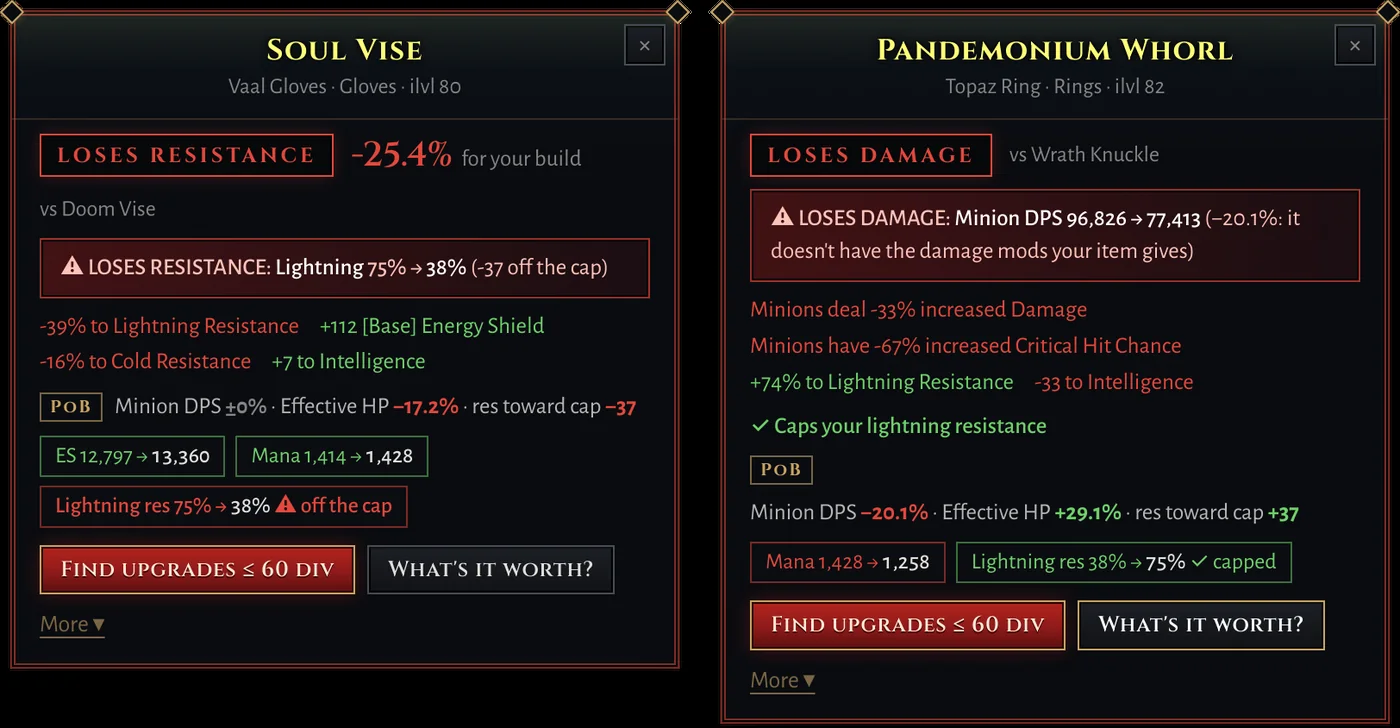
Here is everything the popup can show, from top to bottom.
The item's name
The name in the game's rarity colour, then the base type, the item class and the item level (ilvl). It's the item you copied, so you can tell you checked the right one.
The verdict
The big word is Path of Building's answer to is this better than what I wear in that slot?
- UPGRADE
- Clearly better for your build: +3 points or more. Wear it.
- SMALL UPGRADE
- A little better: +1 to +3 points. Worth it if it's cheap or you have nothing better to spend on.
- SIDEGRADE
- About the same: within 1 point either way. It's better in some ways and worse in others, and they cancel out.
- DOWNGRADE
- Worse than what you wear.
- UPGRADE, BUT…
- The numbers go up, but something breaks: you'd be short of Spirit for your minions or auras, you couldn't meet an attribute requirement, you'd lose 3% or more movement speed, or (PoE1) it has fewer links than the gems you socket there. The reason is written under it.
- LOSES RESISTANCE
- It drops a resistance off the cap (or further under it). Never called an upgrade, however good the rest is: an uncapped resistance gets you killed. The line under it says exactly what drops.
- LOSES DAMAGE
- It costs more than 5% of your damage, usually because it's missing a damage mod your item has. Never called an upgrade, however much life or resistance it adds.
- EMPTY SLOT
- You have nothing saved in that slot, so anything is better. Click Set as … if you're wearing it.
- EQUIPPED
- It's the item you have saved in that slot.
- NOT JUDGED
- The app can't judge this kind of item (for example a PoE1 cluster or timeless jewel, or an unidentified item). It can still price it.
- UNIQUE
- A unique with no build loaded: uniques have fixed mods, so they get no gear score. Load your build and they get a real verdict.
You can turn each safety check off under My gear → Priorities: Cap my resistances first, Never lose damage, Never run short of Spirit, Keep attribute requirements met and Keep my movement speed.
The score: "+12.4 pts for your build"
Next to the verdict is Path of Building's score for the item. It's the % change to your damage and your effective HP, weighted 60/40 by default, plus half a point for every resistance point it adds toward a cap you're short of. So +12.4 pts means roughly a 12% better build. Move the Damage – Survivability slider on My gear to weigh them differently, for example toward survivability for Hardcore.
Under it, vs Doom Vise names the item it was compared with. Rings are tried in both ring slots and compared with the one it beats more; jewels are tried in every jewel socket on your tree, and the verdict says which socket (vs Entropy Star (Socket #2)). A two-handed weapon is compared with your weapon and offhand together.
Red lines: what you'd lose
- Lightning 75% → 38% (−37 off the cap): the resistance you'd have with this item, and how far it falls. further under the cap means you're already short and it gets worse.
- Minion DPS 104,000 → 88,000 (−15%: it doesn't have the damage mods your item gives): the damage you'd lose.
A popup with a red border always has one of these. On the trade results these items go to the bottom.
Path of Building's numbers
The line marked PoB is what Path of Building calculated with your build, compared with what you wear now:
- DPS (your skill) +4.2% or Minion DPS +4.2%: the change to your damage, on the main skill you picked on the Character page (or Path of Building's Full DPS when your build adds skills together).
- Effective HP −1.1%: Path of Building's effective HP, which counts life, energy shield, resistances, armour, evasion and other mitigation together.
- +12 res to cap: resistance points it adds toward caps you're short of (with Cap my resistances first on).
- ✓ Caps your fire resistance: with this item that resistance reaches its cap. These go to the top of trade results.
- no damage to compare: your main skill in Path of Building deals no damage. Pick your damage skill on the Character page.
- No change to damage or effective HP: the item doesn't move either, for example a flask or a pure utility item.
Under that come the totals that change, each as before → after: Speed (movement speed), Hit (your skill's average hit), ES, Life, Runic Ward (Ward in PoE1), Spirit, Mana, and each resistance, marked ✓ capped, (under cap) or off the cap. A line starting with a warning sign lists anything else that breaks, such as running short of Spirit or an attribute requirement.
Colours: blue is better, red is worse, grey is a change your build doesn't care about. With Settings → Colour-blind friendly colours, worse is orange instead of red.
At 20% quality
Armour and weapons under 20% quality are judged a second time at 20%: At 20% quality: +6.1% for your build (UPGRADE) · 8% now. That's what a few Armourer's Scraps, Blacksmith's Whetstones or Arcanist's Etchers would make it.
Price and keep, sell or vendor
- NINJA ≈ 2.5 div (480 ex · 36 chaos): poe.ninja's price, when it has one (uniques, gems, currency). 7 days +12% and the little line show how it moved this week. few listed means a rough guess; price of the … version? means the unique comes in versions the app can't tell apart.
- KEEP: it's an upgrade for you (or fills an empty slot).
- SELL: not an upgrade, but worth listing: poe.ninja says about 3 div or similar items sell for about 40 ex.
- VENDOR: not an upgrade and worth less than about 2% of a divine, or a magic or normal item, which rarely sell.
- PRICE CHECK: a rare or unique the app has no price for yet. Press What's it worth? before you vendor it.
- List it at 4 divine · Copy price note: a price just under the market, and the
~pricenote to paste on it in a premium stash tab.
Gear score (PoE2, without a build)
Without a Path of Building build, PoE2 items get a gear score from 0 to 100 instead: how good the item is in that slot for your kind of build, where 100 is about the best it can roll. The grade is S (85+), A (70+), B (55+), C (40+) or D. 45 C · gear score · yours 56 means it scores 45 and the item you wear scores 56. Click why? for the points each stat gave, how high each rolled, what's missing and which mods do nothing for you. Resistances only count up to your cap.
Crafting lines
With advanced copy on (Settings), the popup knows the item's affixes:
- Open: 2 prefixes, 1 suffix – craftable: free affix slots you can fill with an Exalted Orb, an essence or a craft. All 6 affixes taken means it's full.
- Best mods to add: Path of Building tries every mod that can roll in those free slots on your build and lists the best eight. P T1 or S T2 is a prefix or suffix and its tier; the number is what the item would be for your build with that mod, and the one in brackets is the gain over the item as it is now.
- Mods and tiers (under More): each mod with its tier, T1 being the best roll range, and how high in that range it rolled, as a %.
The buttons
- Find upgrades 5–20 div: searches the trade site in your price range for something better than what you wear in that slot. For an item you don't wear it's Find items like this.
- What's it worth? prices the item from the trade site (see the price checker), and Price by chosen stats… lets you pick which stats to match.
- Uniques get What's it worth? and Find cheaper copies.
- Set as … saves the item as what you wear in that slot (for rings: Ring 1 or Ring 2).
- League: … · change: the league its searches and prices use.
- More ▾ opens the rest: the full table of every stat that changes (old → new, with ⊘ to ignore a stat from now on), mods and tiers, Set as …, and more searches: Like this item, As good as my …, By my weights, Craftable bases and Pick stats…, plus links to the wiki and poedb. Settings → Popup → Detail can open it every time.
The popup closes when you move the mouse away, click ×, or after the time set in Settings. Esc is left to the game.
Other things F2 works on
- Maps, waystones and tablets: DANGER, CAREFUL or LOOKS FINE for your character, with each mod worked out by Path of Building (–12% max resistances: effective HP –14%). Click a mod to mark it dangerous, careful or fine for every map from then on.
- Skill and support gems: if your build uses that gem, Path of Building tries this one's level and quality and shows the damage and effective HP change.
- Currency, fragments, cards and other stackables: the poe.ninja price, each and for the stack.
- Your own gear after crafting: check a saved item again and it says ✓ Saved as your Ring 1, judged against how it was before.
10. Find upgrades on trade
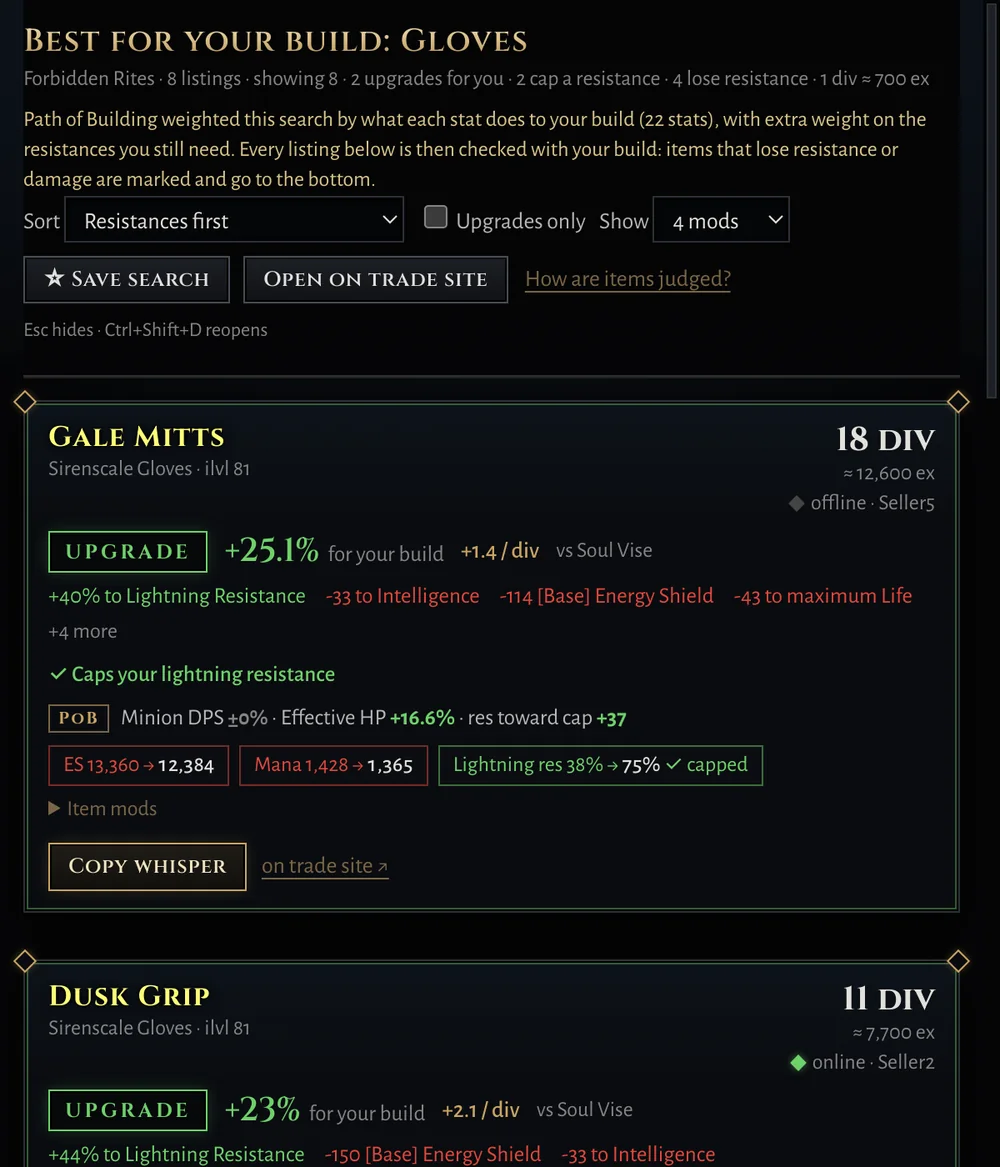
- Click Find upgrades in the popup, or next to any slot on My gear. Path of Building weights the search by what every mod is worth to your build, and checks each listing exactly.
- Set a price range on the Find upgrades page, for example 5 to 20 divines, and the sellers: Instant Buyout + In Person by default.
- Results open in the app's results window, sorted resistances first or by best upgrade, best value, or cheapest. Upgrades only hides the rest.
- Travel to hideout on Instant Buyout listings, or Copy whisper for the rest. Esc hides the window and Ctrl+Shift+D brings it back.
Sign in (optional): Settings → Trade site account opens pathofexile.com's own login in a separate window. Signed in, searches can weigh more stats and Travel to hideout works. Without it everything else still works.
More ways to search: Same stats or better, Craftable bases, Custom search, Best uniques, and Where to spend in the sidebar, which searches every slot in your budget and ranks what each divine buys you. Save a search and tick Alert to get a notification when new listings appear.
11. Use the price checker (F3)
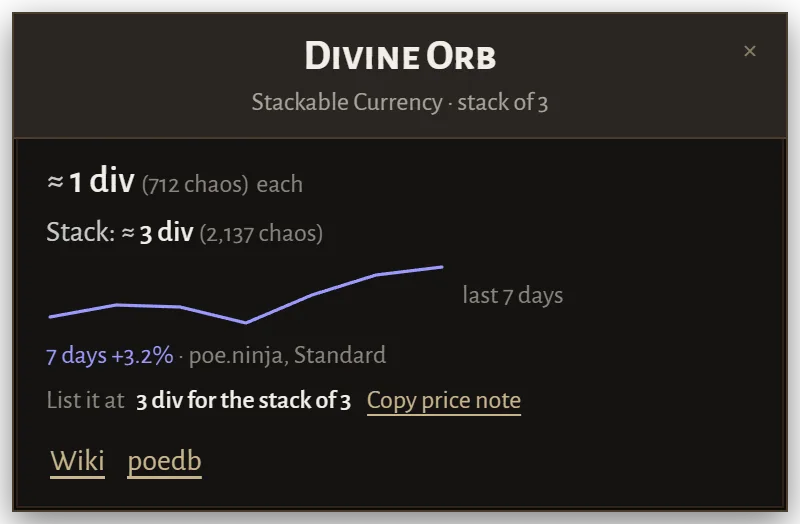
- Hover an item and press F3. A small popup shows only its price, without the upgrade check.
- Currency, fragments, gems, divination cards and uniques are priced from poe.ninja: each, the whole stack, and the 7-day trend.
- Rares, waystones, maps and tablets are priced from the trade site, searched the way buyers search (total resistances, life, attributes, defences or DPS, and the worthwhile mods). Only recent listings from sellers who are online count, and price-fixing baits are left out.
- It says how sure it is: solid price (plenty of close, recent listings at similar prices), rough price, or a guess. When nothing close is listed you get a range instead of one made-up number.
- Every listing is compared with your item, so better ones don't push your price up, and your own listing is left out. The same item again within an hour answers at once.
F2 or F3? F2 does everything: the upgrade verdict, then the price on the same popup when you click What's it worth?. F3 skips the build check for a quick answer while you sort loot. Change or turn off F3 under Settings → Hotkeys.
Too low / About right / Too high under a price tells the app how far off it was, which helps tune the price checks.
Selling it: the popup suggests a listing price just under the market and Copy price note (~price 4 divine) to paste into the item's note in a premium stash tab. Items you copy a note for go on the For sale list (Check an item page), which checks whether they're still listed and how your price compares.
Picking the stats yourself: in the full popup, Price by chosen stats… lets you choose exactly which stats and minimums to match. And about 3 hours after a trade price check the app looks again and tells you how many of those listings were gone: what sold, and at what asking prices.
12. Hotkeys
Change any of them under Settings → Hotkeys: click the box, press the keys, then Save. F-keys work best: with WASD movement, a letter key would also move your character.
| Key | What it does |
|---|---|
| F2 | Check item: the upgrade verdict, price and trade buttons for the item under the mouse |
| F3 | Price only: a small popup with just the item's price |
| Ctrl+Shift+D | Show or hide the trade results window |
| Ctrl+Shift+L | Show or hide the League start overlay (set on the League start page) |
| Off until you pick one | Save as equipped: save the item you wear under the mouse in its slot |
| Off until you pick one | Search strings: copy a search for the game's search box, press again for the next |
| Off until you pick one | Loot filter editor and Search string builder overlays |
The only key the app sends to the game is one copy (Ctrl+C, or Ctrl+Alt+C with advanced copy) per press. Search strings and chat commands only go on your clipboard for you to paste. If another program holds a key, the app tells you and offers Pick other keys.
13. Settings
- Hotkeys: the keys above, Also check gear when I press Ctrl+C myself, and Use advanced copy.
- Trade site account: sign in to pathofexile.com for bigger searches and Travel to hideout, or sign out.
- Popup: where it appears (next to the mouse, or the left, right or top of the screen), how long it stays, compact or full detail, text size, colour-blind colours (blue better, orange worse), and the currencies prices are shown in. You can also drag the popup by its name: it stays where you put it.
- Usage statistics: the anonymous counts, on or off.
- Startup & updates: start with Windows (quietly in the tray), whether the main window opens on start, and What's new.
- Back up & restore: one file with your characters, gear, builds, priorities, saved searches, hotkeys and League start progress, for a new PC or a reinstall. Folders on the PC (your loot filter folder and Client.txt) aren't in it, so restoring someone else's backup never points the app at their folders.
- Troubleshooting: Show a test popup, Open log file, and Pause to ignore the hotkeys for a while.
Your data stays on your PC in %APPDATA%\PoE2 Upgrade Checker. More in Fair play and privacy.
Troubleshooting
Still stuck? Ask on our Discord with a screenshot and the log (tray → Open log), or email support@poe2upgrade.com.
I press F2 and nothing happens
Set the game to Windowed Fullscreen, check the tray menu says Hotkey: F2, and start the game normally, not as administrator. Settings → Show a test popup checks the popup can draw at all, and the log (tray → Open log) says what happened on each press. When F2 finds nothing, the popup usually says why: the game wasn't the active window, or the mouse wasn't over the game.
The app says the hotkey is taken
Another overlay or tool has registered the same key. Click Pick other keys in the warning, or set another key under Settings → Hotkeys. F-keys nobody else uses (F4–F8) are a good choice.
The import fails or says it can't read the build
Paste the whole code, from Path of Building 2 for PoE2 or Path of Building Community for PoE1, and make sure the character in the app is for the same game. A pobb.in link must be the build's page, like https://pobb.in/abc123. The first import takes a few seconds while Path of Building starts; if it still fails, send the log on Discord.
The verdicts look wrong for my build
They're only as good as the build you give it. Pick the right main skill on the Character page, check Path of Building's Configuration tab (charms, buffs, enemy settings), and save the items you really wear with Set as …. If it still looks wrong, share your pobb.in link and the item on Discord.
Prices are missing or look old
Check the league on Find upgrades: prices are for that league only. Rare items aren't on poe.ninja, so they're priced from the trade site; if the trade site is busy, try again in a minute. Early in a new league poe.ninja has little data, so prices move a lot.
Trade searches fail or say "rate limited"
The trade site limits how often anyone can search. The app paces itself to those limits, so wait a minute and try again. Signing in under Settings → Trade site account allows bigger searches.
The popup covers the item tooltip
Pick a side of the screen under Settings → Popup → Position, or drag the popup by its name: it stays where you put it.
Windows warned me about the installer
The installer isn't code-signed, so SmartScreen doesn't know it yet. Click More info, then Run anyway. The source and the release builds are on GitHub.
Is it safe? Can I get banned?
It never reads game memory, never changes game files and never injects anything. Its only input to the game is one Ctrl+C per key press, the same as copying an item yourself. It's a fan project, not affiliated with Grinding Gear Games. More in Fair play and privacy.
Set up? Press F2.
Download PoE Upgrade CheckerFree and open source. Windows 10/11, Linux (experimental). Path of Exile 2 and Path of Exile 1. Questions? Join our Discord.